> ## Documentation Index
> Fetch the complete documentation index at: https://docs.aryn.ai/llms.txt
> Use this file to discover all available pages before exploring further.
# Tutorial: Property Extraction with the DocParse UI
> Using the DocParse UI to extract properties from a document
## Introduction
In this tutorial, we will walk through an example of using DocParse to extract structured metadata from a document via the Aryn DocParse UI. We will be working with a [sample insurance document](https://aryn-public.s3.us-east-1.amazonaws.com/extraction-tutorial/gri.pdf) that contains a workers compensation reinsurance submission.
 To learn how to extract structured metadata using the Aryn SDK, you can follow [this tutorial](/docparse/tutorials/extraction_tutorial).
## Prerequisites
1. Get your free Aryn API key by signing up on the Aryn Console at [app.aryn.ai](https://app.aryn.ai).
2. Download the [sample document](https://aryn-public.s3.us-east-1.amazonaws.com/extraction-tutorial/gri.pdf) or have your own handy.
## Step 1: Defining a Simple Schema
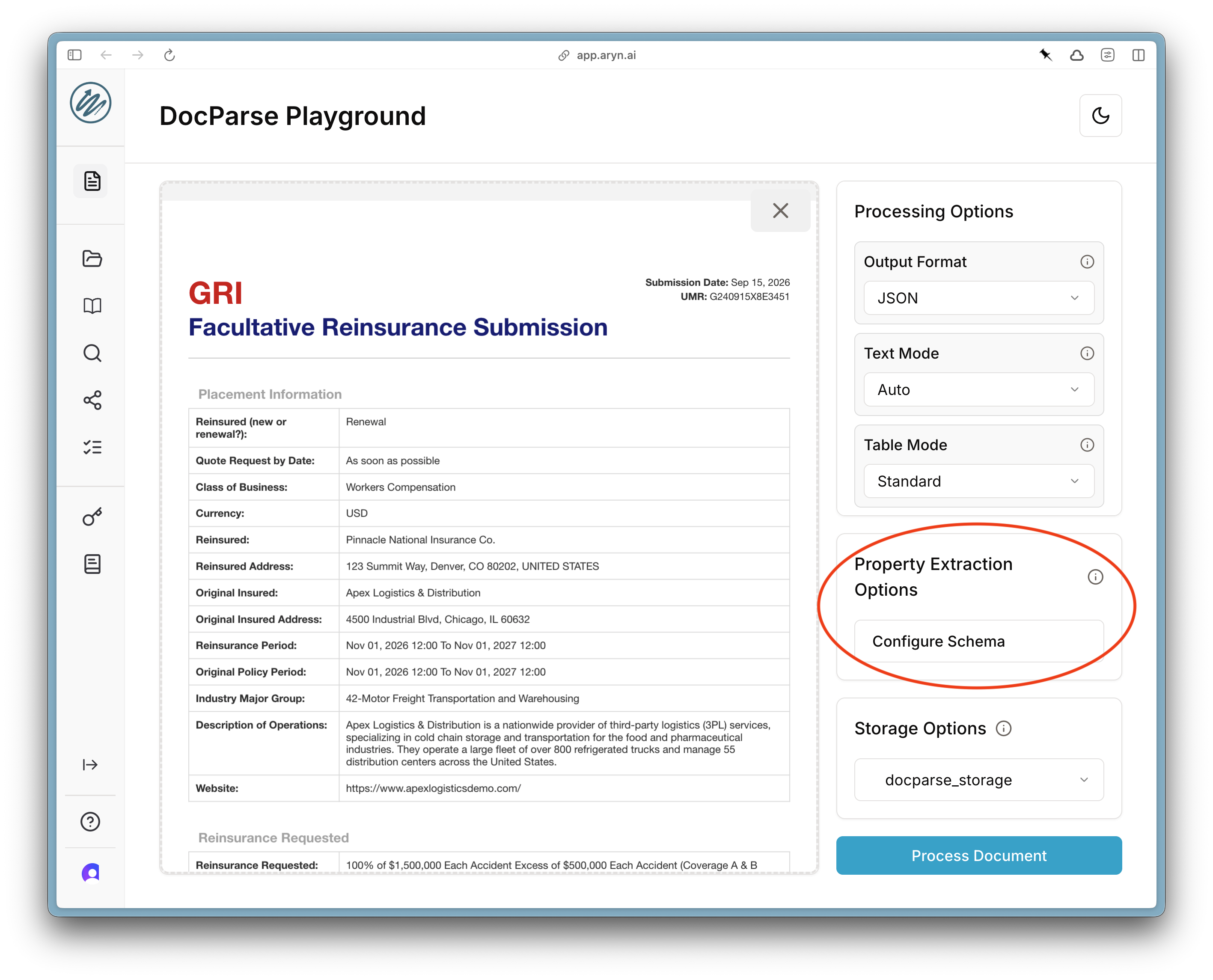
Once you have logged into the Aryn console, load the document you downloaded into the [DocParse Playground](https://app.aryn.ai/docparse). To define properties, click on the \`\`Configure Schema'' button on the right-hand side of the page.
To learn how to extract structured metadata using the Aryn SDK, you can follow [this tutorial](/docparse/tutorials/extraction_tutorial).
## Prerequisites
1. Get your free Aryn API key by signing up on the Aryn Console at [app.aryn.ai](https://app.aryn.ai).
2. Download the [sample document](https://aryn-public.s3.us-east-1.amazonaws.com/extraction-tutorial/gri.pdf) or have your own handy.
## Step 1: Defining a Simple Schema
Once you have logged into the Aryn console, load the document you downloaded into the [DocParse Playground](https://app.aryn.ai/docparse). To define properties, click on the \`\`Configure Schema'' button on the right-hand side of the page.
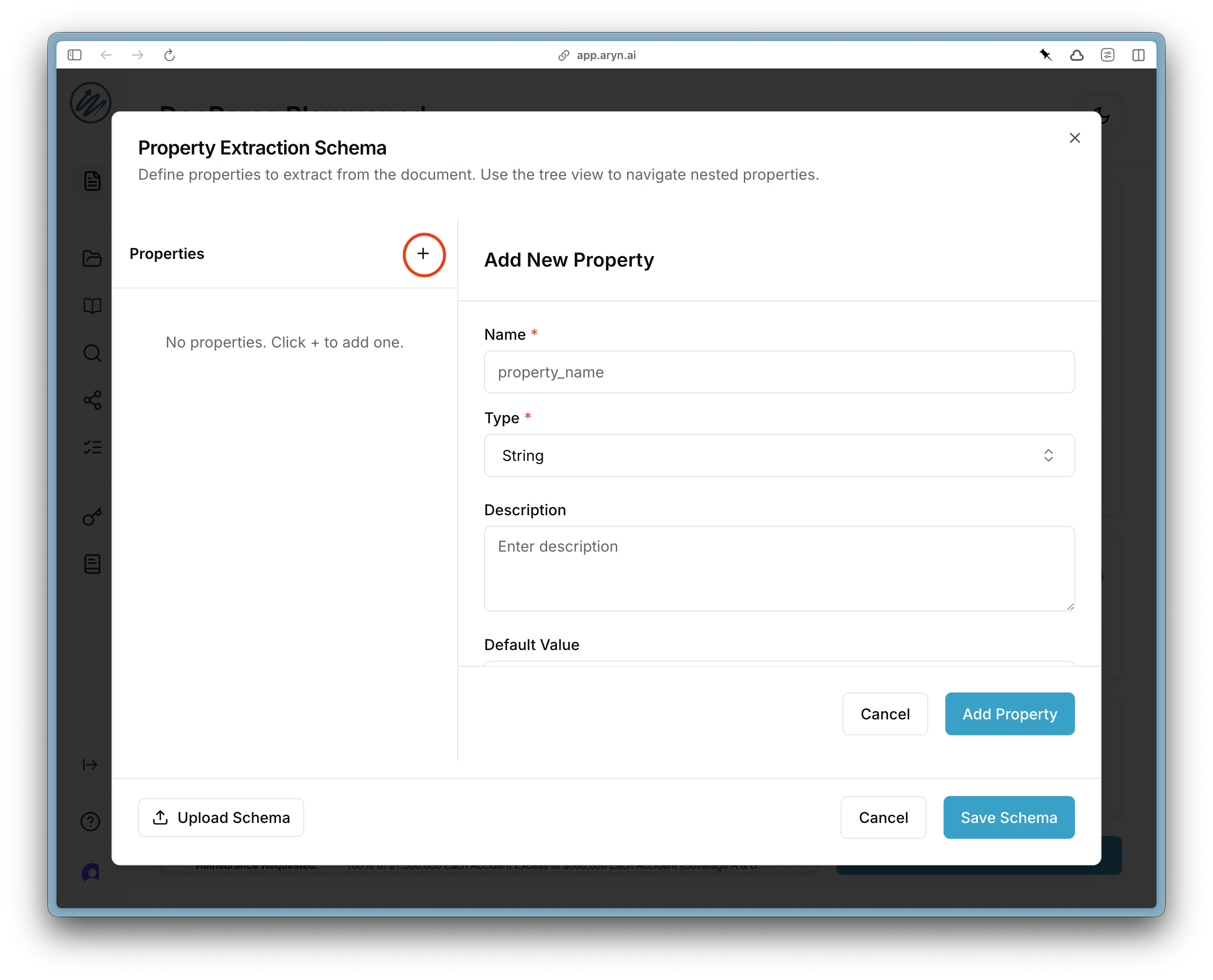
 This brings up the schema creation wizard where you can define the properties you want to extract. Click the `+` button to add a property. For each property you can specify the name and type of the property, as well as an optional description, default values, and examples.
 Go ahead and add the following two fields:
```
Name: Submission Date
Type: Datetime
Description: The submission date of the claim.
```
```
Name: Submission Contact Email
Type: String
Description: The submission contact email.
```
## Step 2: Extracting Nested Data with Arrays
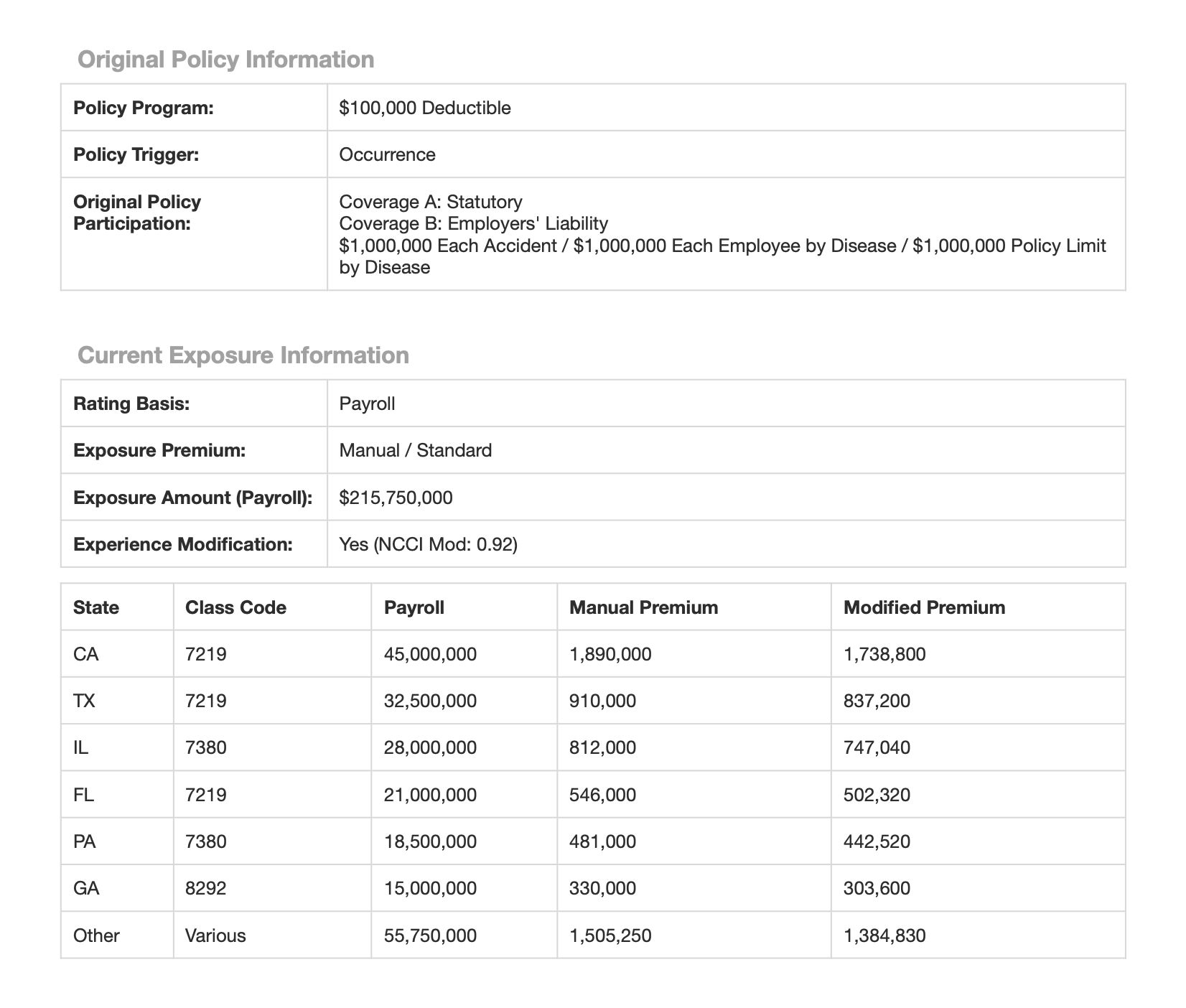
It's common to want to extract multiple records from a single document, each of which has a similar schema. For example, in the sample document, the current exposure information is broken out by state in a table on page 2. You can extract all of these entries with DocParse by specifying a field of type `Array`.
Go ahead and add the following two fields:
```
Name: Submission Date
Type: Datetime
Description: The submission date of the claim.
```
```
Name: Submission Contact Email
Type: String
Description: The submission contact email.
```
## Step 2: Extracting Nested Data with Arrays
It's common to want to extract multiple records from a single document, each of which has a similar schema. For example, in the sample document, the current exposure information is broken out by state in a table on page 2. You can extract all of these entries with DocParse by specifying a field of type `Array`.
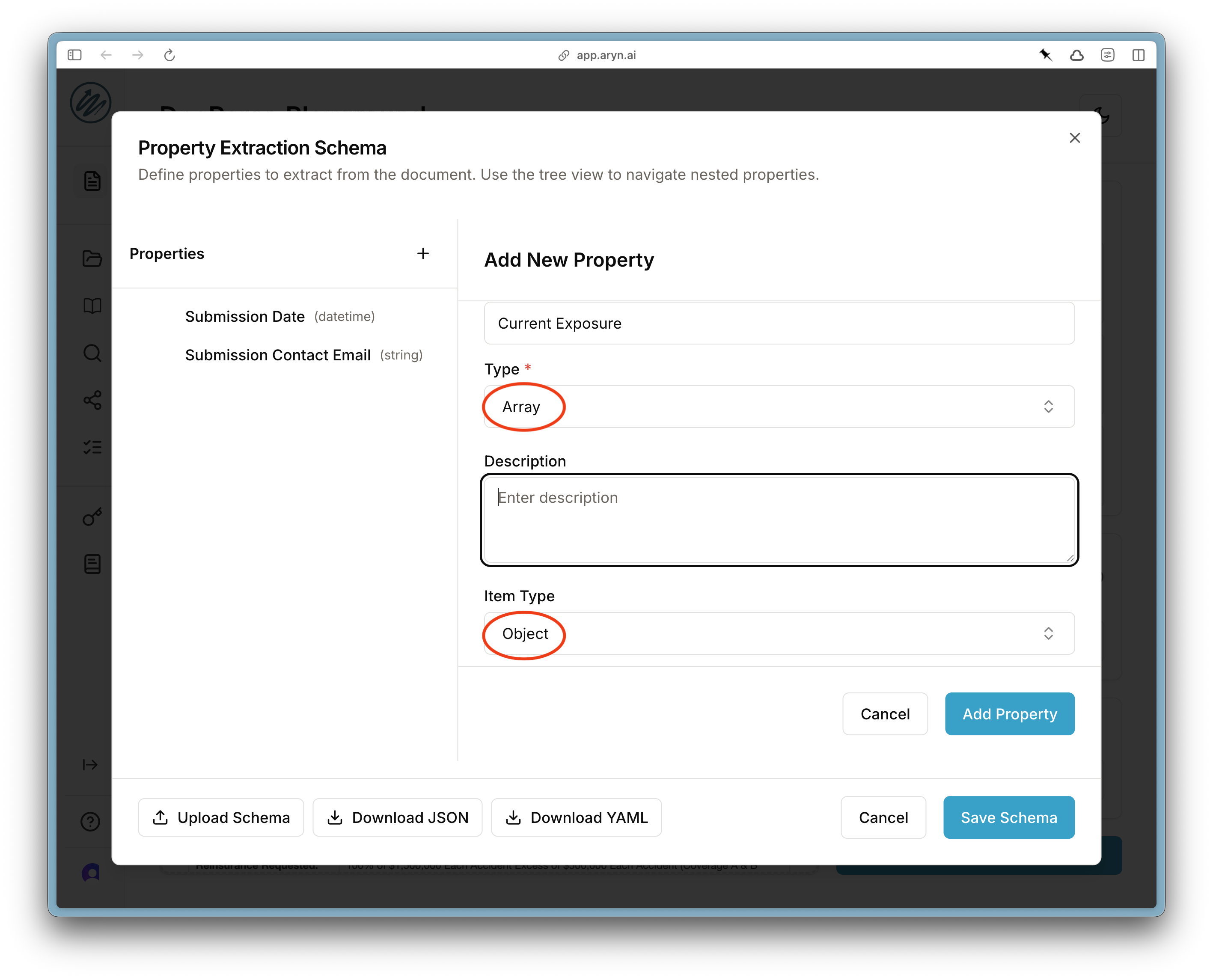 Since each record has multiple properties itself, we set the \`\`Item type'' of the Array to be `Object`. Then, scroll down and specify the properties of each Array element.
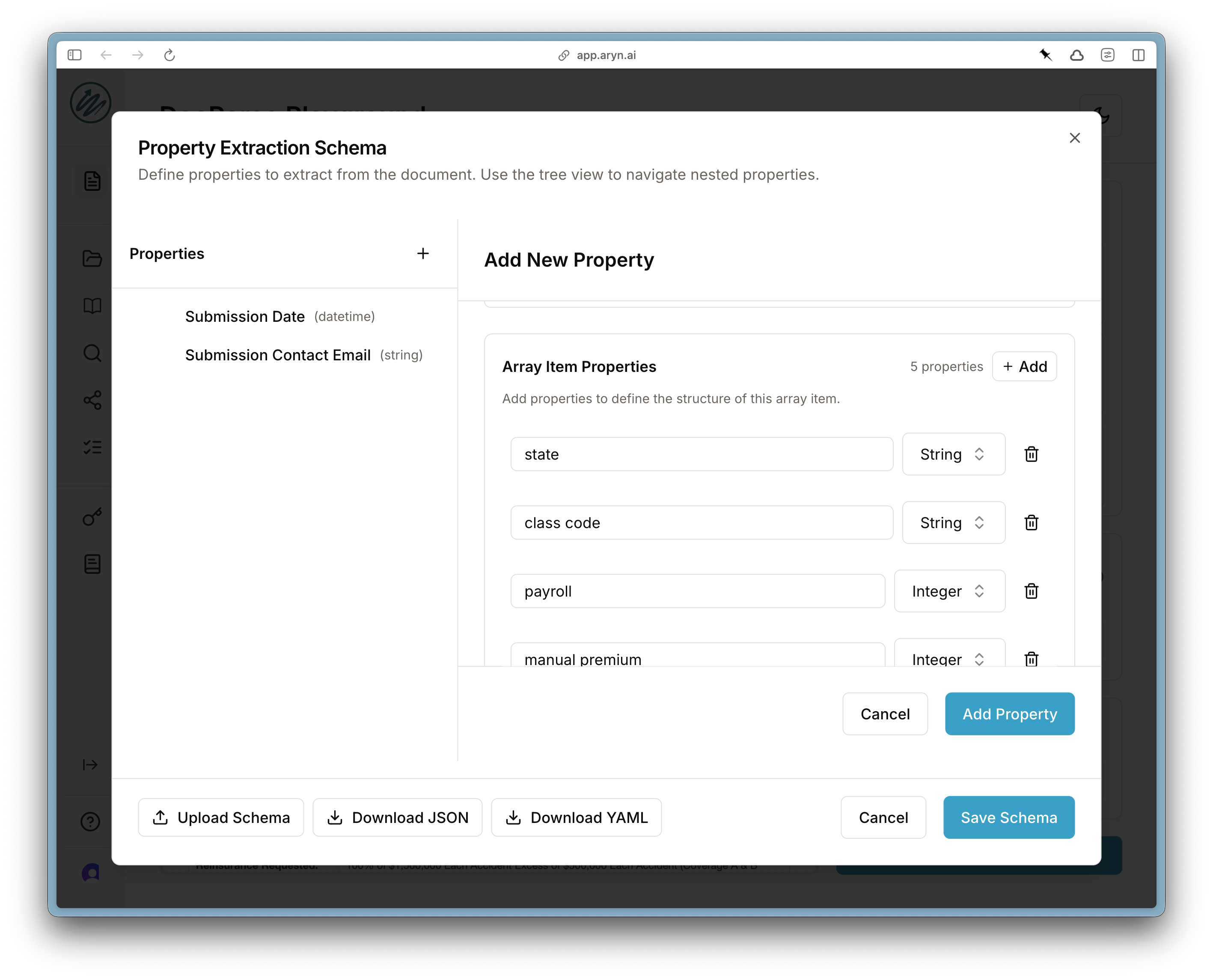 In this case, the nested properties should be
```
Name: State, Type: String
Name: Class Code, Type: String
Name: Payroll, Type: Integer
Name: Manual Premium, Type: Integer
Name: Modified Premium, Type: Integer
```
The schema should look like the following:
In this case, the nested properties should be
```
Name: State, Type: String
Name: Class Code, Type: String
Name: Payroll, Type: Integer
Name: Manual Premium, Type: Integer
Name: Modified Premium, Type: Integer
```
The schema should look like the following:
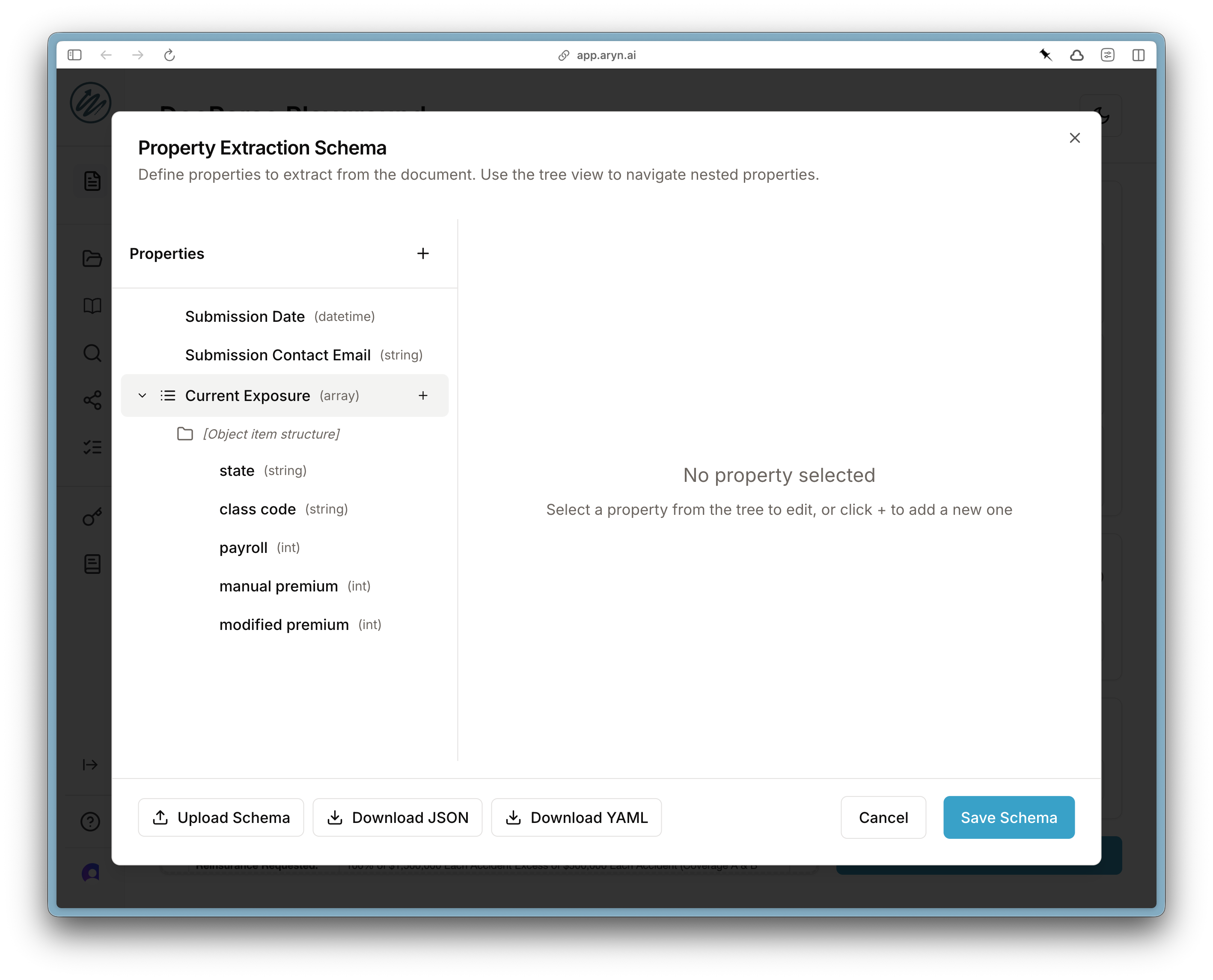 Once you have the schema how you like it, click on `Save Schema` and then `Process Document` to perform the parsing and extraction.
## Step 3: Review Results
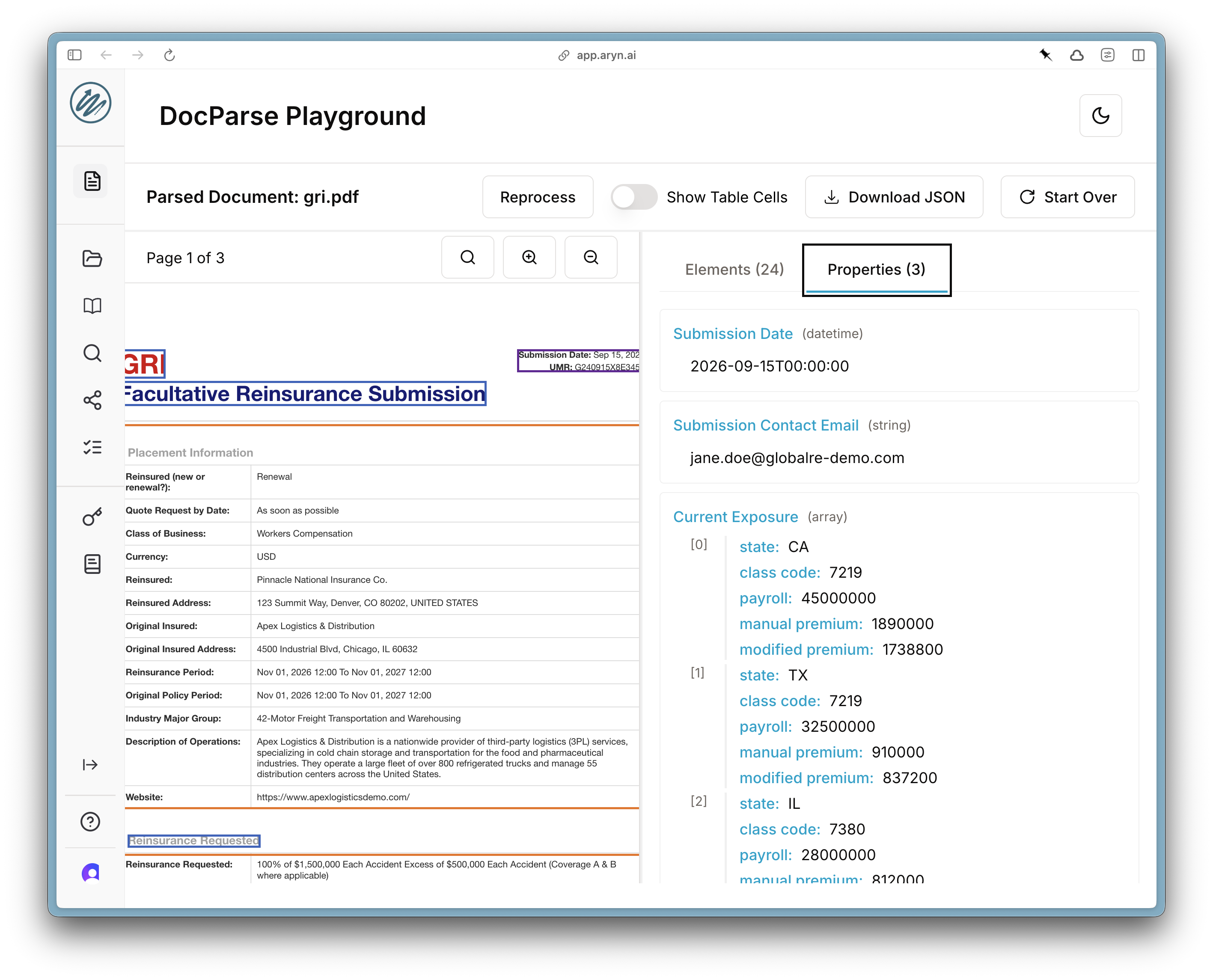
After DocParse has finished processing, you can review the results. Select the "Properties" tab on the right-hand side to look at the extracted properties.
Once you have the schema how you like it, click on `Save Schema` and then `Process Document` to perform the parsing and extraction.
## Step 3: Review Results
After DocParse has finished processing, you can review the results. Select the "Properties" tab on the right-hand side to look at the extracted properties.