> ## Documentation Index
> Fetch the complete documentation index at: https://docs.aryn.ai/llms.txt
> Use this file to discover all available pages before exploring further.
# Tutorial: Image Extraction
> Use Aryn DocParse to extract an image from a battery manual
## Introduction
In this [example](https://colab.research.google.com/drive/1_OOvmy-N5qQNxKe-S2vKHBodfcBR25hg),
we'll use DocParse to extract images from a
[battery manual](https://aryn-public.s3.amazonaws.com/partitioner-blog-data/powerwall_parts_boards.pdf).
We'll go through the important code snippets below to see what's going on.
Let's focus on the following code that calls the DocParse [partition](../../api-reference/introduction) API
to parse the manual, extracting its embedded images, inline text, and tables:
```python theme={null}
from PIL import Image
from io import BytesIO
import pdf2image
import base64
import aryn_sdk
from aryn_sdk.partition import partition_file, draw_with_boxes, convert_image_element
aryn_api_key = 'YOUR-KEY-HERE'
file_name = 'powerwall_parts_boards.pdf'
# Parse the file extracting images, inline text embedded in the PDF,
# and tables using Aryn's default table extraction model.
# returns a JSON object with parsed elements of the PDF
with open(file_name, 'rb') as file:
partitioned_file = partition_file(file, aryn_api_key=aryn_api_key,
extract_images=True,
table_mode="standard",
text_mode="inline")
```
If you inspect the returned `partitioned_file`, you'll notice that it's a large JSON object with
details about all the parsed elements in the PDF (checkout [this page](../output_structure) to understand
the schema of the returned JSON object in detail). Below, we show the first few elements of
`partitioned_file`:
```json theme={null}
[
{
"type":"Image",
"bbox":[
0.9439504825367647,
0.005599567673423073,
0.9984484145220588,
0.058024385625665836
],
"properties":{
"score":0.6607702374458313,
"image_size":[
112,
136
],
"image_mode":"RGB",
"image_format":"None",
"page_number":1
},
"binary_representation": ...
},
{
"type":"Section-header",
"bbox":[
0.06352920981014476,
0.08379009593616832,
0.34880245433134194,
0.10395796342329545
],
"properties":{
"score":0.8269602656364441,
"page_number":1
},
"text_representation":"Make AC Power Connections"
},
...
]
```
## Extracting the Image
Below, we show an `Image` element that contains the information about the first
schematic image in the file. You see key properties of the image, including its bounding box
(which indicates the coordinates of the image in the page) and
a base64 encoded binary representation of the image.
```json theme={null}
{
"type":"Image",
"bbox":[
0.07296839545754825,
0.11070712002840909,
0.3344818833295037,
0.44303000710227275
],
"properties":{
"score":0.8690586090087891,
"image_size":[
465,
751
],
"image_mode":"RGB",
"image_format":"None",
"page_number":1
},
"binary_representation": ...
}
```
## Output Image
You can then process this JSON however you'd like for further analysis. For example, let's use the
Pillow Image module from python to display the extracted image on its own.
```python theme={null}
## extract all the images from the JSON and print out the JSON representation of the first image
images = [e for e in partitioned_file['elements'] if e['type'] == 'Image']
first_image = images[1]
## read in the image and display it
image_width = first_image['properties']['image_size'][0]
image_height = first_image['properties']['image_size'][1]
image_mode = first_image['properties']['image_mode']
image = Image.frombytes(image_mode, (image_width, image_height), base64.b64decode(first_image['binary_representation']))
#display the image
image
```
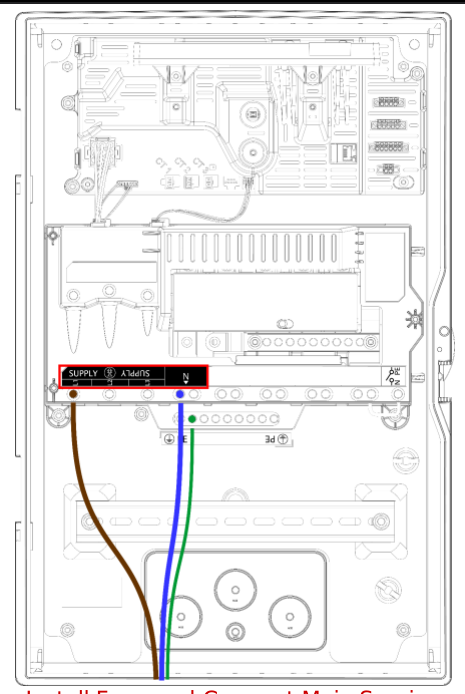 As you can see, the image has been successfully extracted from the PDF with clarity.
## Captions
If you want to associate captions with the images, you can reprocess the file with the `associate_captions` parameter within `image_extraction_options` set to `True`.
```python theme={null}
with open(file_name, 'rb') as file:
partitioned_file_caption = partition_file(file, aryn_api_key=aryn_api_key,
extract_images=True,
table_mode="standard",
text_mode="inline",
image_extraction_options={"associate_captions": True})
```
After enabling the `associate_captions` parameter, you'll notice that the image is now associated with a caption, as seen below.
As you can see, the image has been successfully extracted from the PDF with clarity.
## Captions
If you want to associate captions with the images, you can reprocess the file with the `associate_captions` parameter within `image_extraction_options` set to `True`.
```python theme={null}
with open(file_name, 'rb') as file:
partitioned_file_caption = partition_file(file, aryn_api_key=aryn_api_key,
extract_images=True,
table_mode="standard",
text_mode="inline",
image_extraction_options={"associate_captions": True})
```
After enabling the `associate_captions` parameter, you'll notice that the image is now associated with a caption, as seen below.
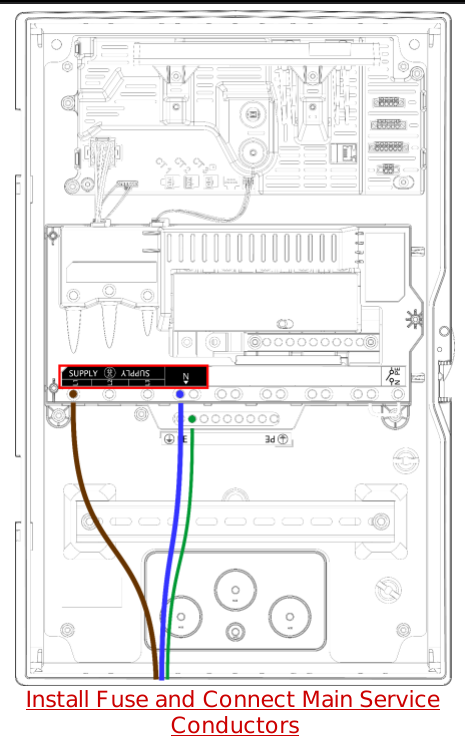 The caption is also returned in the `caption` field of the element.
```json theme={null}
{
"type":"Image",
"bbox":[
0.07296839545754825,
0.11070712002840909,
0.3344818833295037,
0.44303000710227275
],
"properties":{
"score":0.8690586090087891,
"image_size":[
465,
751
],
"image_mode":"RGB",
"image_format":"None",
"caption":{
"type":"Caption",
"bbox":[
0.07958163990693934,
0.418170859596946,
0.32795234231387865,
0.44303000710227275
],
"properties":{
"score":0.4383608400821686,
"_element_index":19,
"font_size":8.04000000000002
},
"text_representation":"Install Fuse and Connect Main Service Conductors"
},
"page_number":1
},
"binary_representation": ...
}
```
The caption is also returned in the `caption` field of the element.
```json theme={null}
{
"type":"Image",
"bbox":[
0.07296839545754825,
0.11070712002840909,
0.3344818833295037,
0.44303000710227275
],
"properties":{
"score":0.8690586090087891,
"image_size":[
465,
751
],
"image_mode":"RGB",
"image_format":"None",
"caption":{
"type":"Caption",
"bbox":[
0.07958163990693934,
0.418170859596946,
0.32795234231387865,
0.44303000710227275
],
"properties":{
"score":0.4383608400821686,
"_element_index":19,
"font_size":8.04000000000002
},
"text_representation":"Install Fuse and Connect Main Service Conductors"
},
"page_number":1
},
"binary_representation": ...
}
```