> ## Documentation Index
> Fetch the complete documentation index at: https://docs.aryn.ai/llms.txt
> Use this file to discover all available pages before exploring further.
# Tutorial: DocParse Intro
> Parsing and extracting elements from a document
## Introduction
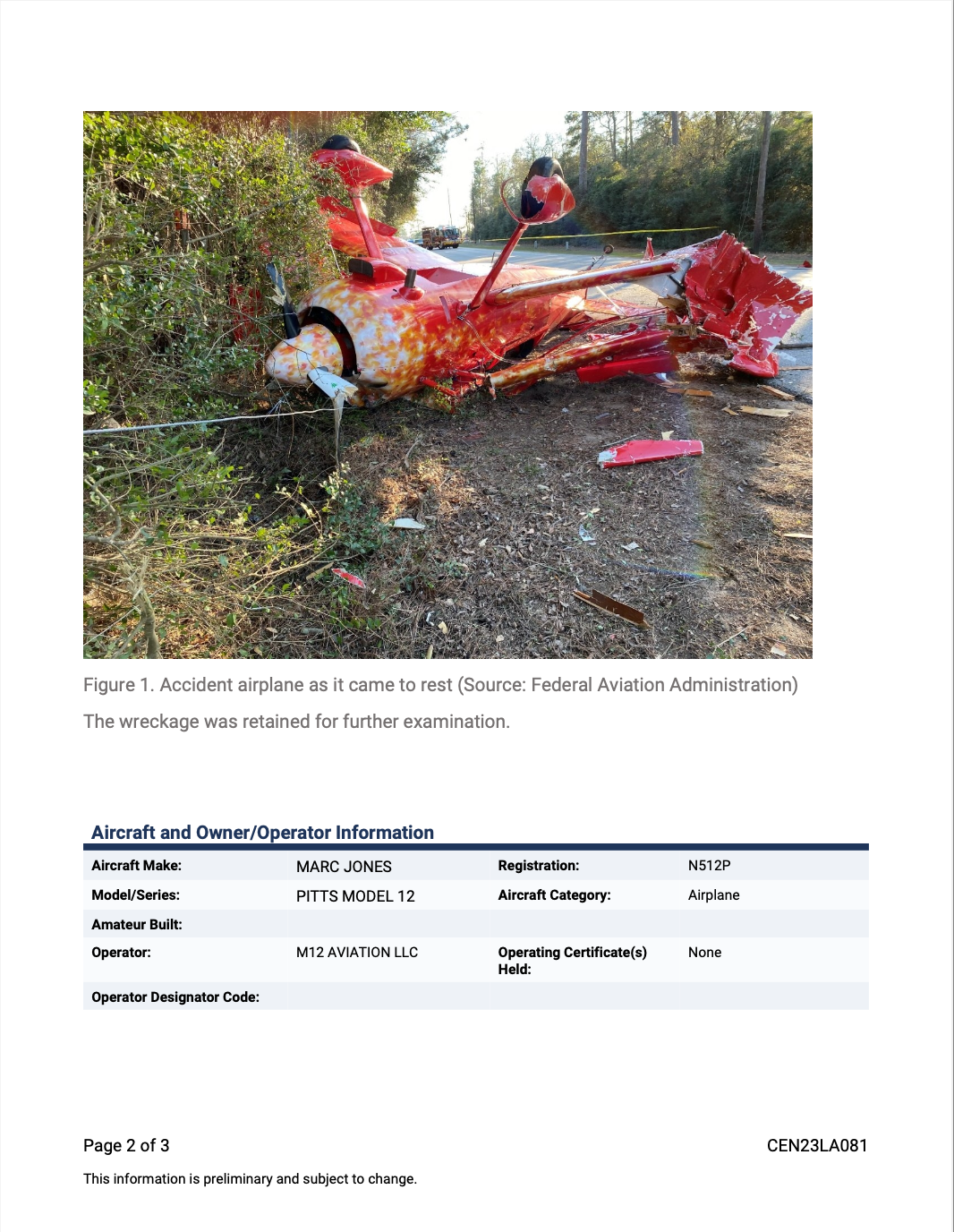
In [this example](https://colab.research.google.com/drive/120STOQ5wGIpFUbgS7Gcld_PVW-CfLWOg#scrollTo=bTu2a1K-F19w), we'll use DocParse to extract data from an NTSB report using the `aryn-sdk`. We'll go through the important code snippets below to see what's going on. For the purposes of this tutorial, we focus on page 2 of the document, given below.
 ## Getting Parsed Document
### Making a Call to DocParse
```python text_demo.py theme={null}
with open(file_name, 'rb') as file:
## Make a call to the partitioning service and set extract_images to true.
partitioned_file = partition_file(file, aryn_api_key, extract_images=True, extract_table_structure=True, text_mode="auto", selected_pages=[2])
```
We use the `partition_file` function from `aryn_sdk.partition` to extract text and images from the document. The
`aryn_api_key` is your API key from Aryn. In this example, we set `text_mode` to `auto` to use
an optimal combination of OCR and inline text, and set `extract_images` and `extract_table_structure`
to `True` to extract images and tables. We use `selected_pages=[2]` to focus on page 2. This document is also be added
to [your storage](http://app.aryn.ai/storage/), where you can visualize the labeled bounding boxes and extracted
elements.
### Viewing the JSON Output
```json output.json theme={null}
{'status': ['Incremental status will be shown here during execution.',
"Until you get a line that matches ' ]\n', you can convert the partial",
'output to a json document by appending \'""]}\' to the partial output.',
'',
'T+ 0.00: Server version managed-service-22-model-1-4 Model version 1.4',
'T+ 0.00: Received request with aryn_call_id=REDACTED',
'T+ 0.00: Waiting for scheduling',
'T+ 0.01: Preprocessing document',
'T+ 0.01: Done preprocessing document',
'T+ 0.51: Completed work on page 2',
''],
'elements': [{'type': 'Image',
'bbox': [0.0873676793715533,
0.08911955399946733,
0.8548237161075367,
0.5357984508167614],
'properties': {'score': 0.873895525932312,
'image_size': [1324, 1003],
'image_mode': 'RGB',
'page_number': 2},
'binary_representation': ...
}
```
Above, you can see the JSON output from the call to Aryn DocParse. The output is a JSON object with a `status` field that shows the status of the call and an `elements` field that contains a list of elements extracted from the document. The call ID has been redacted for privacy reasons.
## Examining Individual Elements
### Extracting an Image from the Document
```json image.json theme={null}
{
type': 'Image',
'bbox': [0.0873676793715533,
0.08911955399946733,
0.8548237161075367,
0.5357984508167614],
'properties': {'score': 0.873895525932312,
'image_size': [1324, 1003],
'image_mode': 'RGB',
'page_number': 2},
'binary_representation': ...
}
```
The first element we see is an image. We get back a bounding box and a binary representation of the image, which we can use to display the image. The bounding boxes are given in the format `[x1, y1, x2, y2]`, where `(x1, y1)` is the top-left corner and `(x2, y2)` is the bottom-right corner of the bounding box.
### Extracting Captions from the Document
```json caption.json theme={null}
{'type': 'Caption',
'bbox': [0.08805406458237591,
0.5466218150745739,
0.8386106244255515,
0.5634380548650568],
'properties': {'score': 0.6033732891082764,
'page_number': 2},
'text_representation': 'Figure 1. Accident airplane as it came to rest (Source: Federal Aviation Administration)\n'}
```
The second element we see is a caption. We get back a bounding box and the text content of the caption.
### Extracting Text from the Document
```json text.json theme={null}
{'type': 'Text',
'bbox': [0.08857761158662684,
0.5770943936434659,
0.5373964197495404,
0.5928012917258523],
'properties': {'score': 0.589328944683075,
'page_number': 2},
'text_representation': 'The wreckage was retained for further examination. \n'}
```
The third element we see is a text element. We get back a bounding box and the text content of the element.
### Extracting a Table from the Document
```json table.json theme={null}
{
'type': 'table',
'bbox': [0.09319061279296875,
0.6873569003018466,
0.9122876694623162,
0.8174545010653409],
'properties': {'score': 0.8106631636619568,
'title': None,
'columns': None,
'rows': None,
'page_number': 2},
'text_representation': None,
'table': {'cells': [{'content': 'Aircraft Make:',
'rows': [0],
'cols': [0],
'is_header': True,
'bbox': {'x1': 0.09705882369281045,
'y1': 0.6968232236868688,
'x2': 0.27310294133986934,
'y2': 0.7097020113257576},
'properties': {}},
{'content': 'MARC JONES',
'rows': [0],
'cols': [1],
'is_header': True,
'bbox': {'x1': 0.31151960800653594,
'y1': 0.6968232236868688,
'x2': 0.43984150343137257,
'y2': 0.7097020113257576},
'properties': {}},...
}
```
The fourth element we see is an table. We get back a bounding box and the table structure, which includes the cells of the table and their properties.
Walking through the first cell above, we see that there are 6 attributes: `content`, `rows`, `cols`, `is_header`, `bbox`, and `properties`. The `content` attribute contains the text content of the cell, the `rows` attribute contains the row index of the cell, the `cols` attribute contains the column index of the cell, the `is_header` attribute indicates whether the cell is a header cell and is optional, the `bbox` attribute contains the bounding box of the cell, and the `properties` attribute contains additional properties of the cell.
#### Displaying the Table
Here we display the table in clean markdown format below. We clean the column headers to make them a separate row in the table.
```python display_table.py theme={null}
import pandas as pd
pandas = tables_to_pandas(partitioned_file)
# Let's display the pandas DataFrame
table = pandas[4][1]
table = pd.concat([pd.DataFrame([table.columns], columns=table.columns), table], ignore_index=True)
table.columns = ['' for col in table.columns] # Optionally reset the column headers
table
```
The output is given below:
| | | | | |
| -: | :------------------------ | :--------------- | :----------------------- | :------- |
| 0 | Aircraft Make: | MARC JONES | Registration: | N512P |
| 1 | Model/Series: | PITTS MODEL 12 | Aircraft Category: | Airplane |
| 2 | Amateur Built: | | | |
| 3 | Operator: | M12 AVIATION LLC | Operating Certificate(s) | None |
| | | | Held: | |
| 4 | Operator Designator Code: | | | |
## Getting Parsed Document
### Making a Call to DocParse
```python text_demo.py theme={null}
with open(file_name, 'rb') as file:
## Make a call to the partitioning service and set extract_images to true.
partitioned_file = partition_file(file, aryn_api_key, extract_images=True, extract_table_structure=True, text_mode="auto", selected_pages=[2])
```
We use the `partition_file` function from `aryn_sdk.partition` to extract text and images from the document. The
`aryn_api_key` is your API key from Aryn. In this example, we set `text_mode` to `auto` to use
an optimal combination of OCR and inline text, and set `extract_images` and `extract_table_structure`
to `True` to extract images and tables. We use `selected_pages=[2]` to focus on page 2. This document is also be added
to [your storage](http://app.aryn.ai/storage/), where you can visualize the labeled bounding boxes and extracted
elements.
### Viewing the JSON Output
```json output.json theme={null}
{'status': ['Incremental status will be shown here during execution.',
"Until you get a line that matches ' ]\n', you can convert the partial",
'output to a json document by appending \'""]}\' to the partial output.',
'',
'T+ 0.00: Server version managed-service-22-model-1-4 Model version 1.4',
'T+ 0.00: Received request with aryn_call_id=REDACTED',
'T+ 0.00: Waiting for scheduling',
'T+ 0.01: Preprocessing document',
'T+ 0.01: Done preprocessing document',
'T+ 0.51: Completed work on page 2',
''],
'elements': [{'type': 'Image',
'bbox': [0.0873676793715533,
0.08911955399946733,
0.8548237161075367,
0.5357984508167614],
'properties': {'score': 0.873895525932312,
'image_size': [1324, 1003],
'image_mode': 'RGB',
'page_number': 2},
'binary_representation': ...
}
```
Above, you can see the JSON output from the call to Aryn DocParse. The output is a JSON object with a `status` field that shows the status of the call and an `elements` field that contains a list of elements extracted from the document. The call ID has been redacted for privacy reasons.
## Examining Individual Elements
### Extracting an Image from the Document
```json image.json theme={null}
{
type': 'Image',
'bbox': [0.0873676793715533,
0.08911955399946733,
0.8548237161075367,
0.5357984508167614],
'properties': {'score': 0.873895525932312,
'image_size': [1324, 1003],
'image_mode': 'RGB',
'page_number': 2},
'binary_representation': ...
}
```
The first element we see is an image. We get back a bounding box and a binary representation of the image, which we can use to display the image. The bounding boxes are given in the format `[x1, y1, x2, y2]`, where `(x1, y1)` is the top-left corner and `(x2, y2)` is the bottom-right corner of the bounding box.
### Extracting Captions from the Document
```json caption.json theme={null}
{'type': 'Caption',
'bbox': [0.08805406458237591,
0.5466218150745739,
0.8386106244255515,
0.5634380548650568],
'properties': {'score': 0.6033732891082764,
'page_number': 2},
'text_representation': 'Figure 1. Accident airplane as it came to rest (Source: Federal Aviation Administration)\n'}
```
The second element we see is a caption. We get back a bounding box and the text content of the caption.
### Extracting Text from the Document
```json text.json theme={null}
{'type': 'Text',
'bbox': [0.08857761158662684,
0.5770943936434659,
0.5373964197495404,
0.5928012917258523],
'properties': {'score': 0.589328944683075,
'page_number': 2},
'text_representation': 'The wreckage was retained for further examination. \n'}
```
The third element we see is a text element. We get back a bounding box and the text content of the element.
### Extracting a Table from the Document
```json table.json theme={null}
{
'type': 'table',
'bbox': [0.09319061279296875,
0.6873569003018466,
0.9122876694623162,
0.8174545010653409],
'properties': {'score': 0.8106631636619568,
'title': None,
'columns': None,
'rows': None,
'page_number': 2},
'text_representation': None,
'table': {'cells': [{'content': 'Aircraft Make:',
'rows': [0],
'cols': [0],
'is_header': True,
'bbox': {'x1': 0.09705882369281045,
'y1': 0.6968232236868688,
'x2': 0.27310294133986934,
'y2': 0.7097020113257576},
'properties': {}},
{'content': 'MARC JONES',
'rows': [0],
'cols': [1],
'is_header': True,
'bbox': {'x1': 0.31151960800653594,
'y1': 0.6968232236868688,
'x2': 0.43984150343137257,
'y2': 0.7097020113257576},
'properties': {}},...
}
```
The fourth element we see is an table. We get back a bounding box and the table structure, which includes the cells of the table and their properties.
Walking through the first cell above, we see that there are 6 attributes: `content`, `rows`, `cols`, `is_header`, `bbox`, and `properties`. The `content` attribute contains the text content of the cell, the `rows` attribute contains the row index of the cell, the `cols` attribute contains the column index of the cell, the `is_header` attribute indicates whether the cell is a header cell and is optional, the `bbox` attribute contains the bounding box of the cell, and the `properties` attribute contains additional properties of the cell.
#### Displaying the Table
Here we display the table in clean markdown format below. We clean the column headers to make them a separate row in the table.
```python display_table.py theme={null}
import pandas as pd
pandas = tables_to_pandas(partitioned_file)
# Let's display the pandas DataFrame
table = pandas[4][1]
table = pd.concat([pd.DataFrame([table.columns], columns=table.columns), table], ignore_index=True)
table.columns = ['' for col in table.columns] # Optionally reset the column headers
table
```
The output is given below:
| | | | | |
| -: | :------------------------ | :--------------- | :----------------------- | :------- |
| 0 | Aircraft Make: | MARC JONES | Registration: | N512P |
| 1 | Model/Series: | PITTS MODEL 12 | Aircraft Category: | Airplane |
| 2 | Amateur Built: | | | |
| 3 | Operator: | M12 AVIATION LLC | Operating Certificate(s) | None |
| | | | Held: | |
| 4 | Operator Designator Code: | | | |